
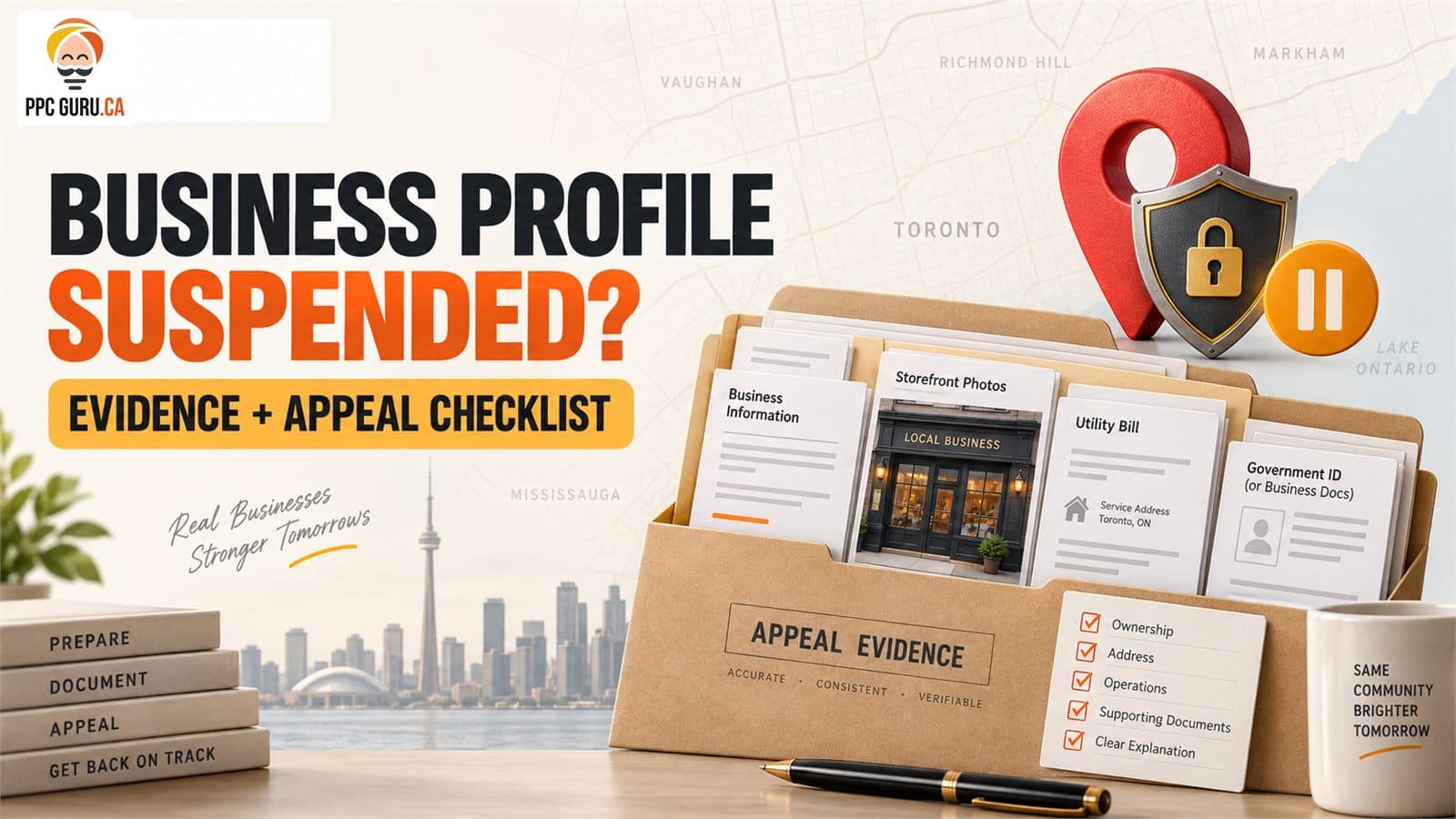
If you see Google Business Profile suspended in your account, stop making random edits and do not create a replacement listing. First identify the policy or account issue, make the profile match the real-world business, and prepare evidence before opening the appeal workflow. PPC Guru's local SEO service for Toronto businesses can help audit the website and profile information, but no agency can guarantee reinstatement or override Google's decision.
Google's current help page includes a time-sensitive detail: if the appeals tool offers an evidence form, the supporting evidence must be submitted within 60 minutes of opening that form. Build the folder first.
The short answer#
A suspended profile should be handled in five steps:
- confirm whether the restriction affects the profile or the Google Account;
- read the reason and linked policy in the official appeals tool;
- correct only information that is inaccurate or non-compliant;
- collect documents and photos that prove the business name, location and operation;
- submit one clear appeal and track its status.
Do not treat this as a keyword problem. The appeal needs consistent, verifiable business evidence.
Google Business Profile suspended: preserve the evidence first#
Save screenshots or notes showing:
- the suspension notice and date;
- the current profile name, category, address or service area, phone and website;
- the account that owns the profile;
- recent edits made before the suspension;
- the reason and policy shown in the appeals tool;
- previous case or appeal IDs.
Do not post private documents publicly or share login credentials with a marketing provider. Use the official Google workflow while signed into the account associated with the profile.
Step 1: determine why the Google Business Profile was suspended#
Google distinguishes between a Business Profile suspension and an account restriction. If the owning Google Account is restricted, profiles managed by that account may be suspended and the account issue may need to be appealed first.
In the appeals tool, confirm:
- the correct Google account;
- the affected Business Profile;
- whether the item is eligible for appeal;
- the moderation reason and linked policy;
- the status: eligible, submitted, approved, not approved or cannot be appealed.
Do not submit from several accounts at once. Keep ownership and communication clear.
Step 2: check the profile against the real business#
Google's core principle is that the profile should represent the business as it is known in the real world. Review the following fields together—not as isolated SEO settings.
Business name#
Use the name consistently shown on permanent signage, the website, stationery and other real-world branding. Remove service, city or ranking keywords that are not genuinely part of the name.
Address and service area#
Decide which model is true:
- Storefront or staffed customer-facing location: customers can visit during the stated hours, and the location meets Google's eligibility requirements.
- Service-area business: staff travel to customers and the business may need to hide its address.
- Hybrid business: customers can visit a staffed location and the business also serves them elsewhere.
A virtual office, mailbox, unstaffed space or location where the business is not actually present can create eligibility problems. Do not invent additional GTA locations to rank in more cities.
Category and services#
Choose the category that best describes the primary real-world business. Supporting categories and services should be accurate, not a list of every phrase the business wants to rank for.
Phone and website#
Use a phone number and website controlled by the business. The website should support the same name, service, address or service-area story. Check that the URL resolves correctly and does not redirect visitors to a different brand or location.
Hours#
Publish customer-facing hours the business can honour. For storefronts, the location should be staffed during the listed hours.
Step 3: correct only what you can verify#
Make a field-by-field table before editing:
| Profile field | Current value | Real-world evidence | Keep or correct | Owner |
|---|---|---|---|---|
| Business name | Signage, website, registration | |||
| Address/display | Utility bill, lease, photos, operating model | |||
| Primary category | Main business activity | |||
| Phone | Website, bill, business records | |||
| Website | Live branded site and location page | |||
| Hours | Staff/customer availability |
Fix a clear violation before appealing. Avoid a sequence of speculative edits that makes the evidence harder to follow.
Step 4: build the appeal evidence folder#
Google lists several documents that may strengthen an appeal:
- official business registration;
- a business licence where applicable;
- tax certificates;
- business utility bills for electricity, phone, water or internet.
Google advises that the business name and address on submitted documents should match the profile being appealed.
Depending on the business model and prompt, supporting evidence may also include clear, current photographs of:
- permanent exterior signage and entrance;
- the customer-facing interior;
- street number and surrounding context;
- branded vehicles, tools or equipment for a service-area business;
- business materials that match the profile.
Use only authentic evidence. Blur or exclude unrelated sensitive information where the form permits, and do not upload customer records.
A Canadian evidence note#
Business documents differ by province and entity type. A Toronto business might have federal or Ontario registration, a municipal licence for a regulated activity, tax documents or utility records. This article does not determine legal eligibility or tell you which document Google will accept. Submit the strongest documents the official form requests and ensure the visible details are consistent.
Step 5: prepare a short factual explanation#
A useful appeal explanation covers:
- what the business does;
- whether customers visit the location or staff visit customers;
- whether the address should be displayed;
- what was corrected and why;
- what each attachment proves.
Example structure:
[Business name] provides [primary service] in [service area]. [Customers visit our staffed location / We visit customers and have hidden the address]. We reviewed the profile against the linked policy and corrected [specific field]. The attached [documents/photos] show our business name, address and operation. We request a review of the profile.
Replace the brackets with verifiable facts. Do not claim a policy error if you actually corrected a violation.
Step 6: submit the official appeal carefully#
Google's current process is:
- open the Business Profile appeals tool while signed into the related account;
- select the correct profile;
- review the restriction reason and policy;
- submit the appeal;
- if prompted, choose Add evidence and submit the prepared files.
The 60-minute evidence window begins when the evidence form is opened, according to Google's help page. Keep filenames clear and the folder ready before clicking.
Do not create a new Business Profile for the same business while the appeal is under review. Google explicitly warns against this.
Step 7: track the result and handle a denial#
Use the appeals tool to check the status. Save the submission time and case information.
If the appeal is denied, Google says an additional review may be available. Use it only after reading the decision and collecting evidence not included in the original request. Do not resubmit the same vague explanation through multiple routes.
If the tool says the issue cannot be appealed or the profile remains missing after an approval, use official Business Profile support and provide the existing case IDs. Keep the account owner involved.
Storefront versus service-area evidence#
| Question | Storefront | Service-area business |
|---|---|---|
| Do customers visit? | Yes, during stated hours | Normally no |
| Address display | Usually visible if eligible | Normally hidden |
| Strong visual evidence | Permanent signage, entrance, staffed interior | Branded vehicles/equipment and real operating evidence |
| Common risk | Virtual/unattended location or weak signage | Displaying a residential/non-customer address or creating multiple city profiles |
| Website support | Location page, contact details, hours | Accurate service areas and operating details |
This is a diagnostic framework, not an eligibility determination. Check the current Google guidelines for the exact business model.
Google Business Profile suspended: what not to do#
- Do not buy a “guaranteed reinstatement.”
- Do not create a duplicate listing for the same business.
- Do not add fake signage or edit documents.
- Do not stuff the business name with services or cities.
- Do not switch repeatedly between storefront and service-area settings.
- Do not give an agency the owner's password or one-time code.
- Do not post private evidence in a public forum.
- Do not assume more reviews or posts will solve an eligibility problem.
How the website affects the appeal and future local visibility#
The website does not prove every element by itself, but conflicting public information can weaken the business story. Review:
- consistent name, phone and contact information;
- a clear location or service-area explanation;
- real service descriptions;
- live pages that match the profile URL;
- no chain to another brand or lead-generation site;
- accessible contact and policy information.
After reinstatement, return to ordinary local SEO: accuracy, helpful service pages, compliant review acquisition and measurement. Our GTA local SEO checklist covers that separate optimization work.
Frequently asked questions#
Why was my Google Business Profile suspended?#
The official appeals tool may show a moderation reason and linked policy. Common areas to audit include the business name, location eligibility, address display, categories, website, ownership and account-level restrictions. Do not guess when the tool provides a specific policy.
Should I edit the profile before appealing?#
Correct clear inaccuracies or violations so the profile matches the real business. Avoid random or repeated changes. Document what changed and support it with evidence.
What evidence should I submit?#
Follow the official form. Google lists business registration, licences, tax certificates and business utility bills as useful examples. Ensure the name and address match the profile, and add authentic operational photos when relevant and requested.
How long does reinstatement take?#
There is no reliable universal time. The appeals tool is the source for status. Complexity, evidence and additional review can change timing. Do not promise a date to customers or create a replacement profile while waiting.
What if my first appeal is denied?#
Read the decision, correct any remaining issue and gather new, relevant evidence. Google may offer an additional-review path for a denied request. Keep previous case IDs and use official support if directed.
Can an SEO agency submit the appeal for me?#
An authorized manager may assist with the audit and documentation, but the owner should understand the submission and retain control of the account. No agency can guarantee Google's decision.
Get a second review before the evidence window opens#
PPC Guru can check whether the website, profile fields and local-search setup tell one consistent story before the owner submits the appeal. Request a local SEO review. We will identify mismatches and evidence gaps, without claiming access to a special reinstatement channel.
When Google Business Profile suspended is the urgent problem, that evidence-first review is more useful than another round of profile optimization.
Sources and review note#
Materially reviewed September 8, 2026. The process and 60-minute evidence-window detail were checked against Google's current guide to fix suspended or disabled profiles and the guidelines for representing a business on Google. Google can change its interface, evidence prompts and policies; follow the instructions shown in the authenticated appeals tool.