
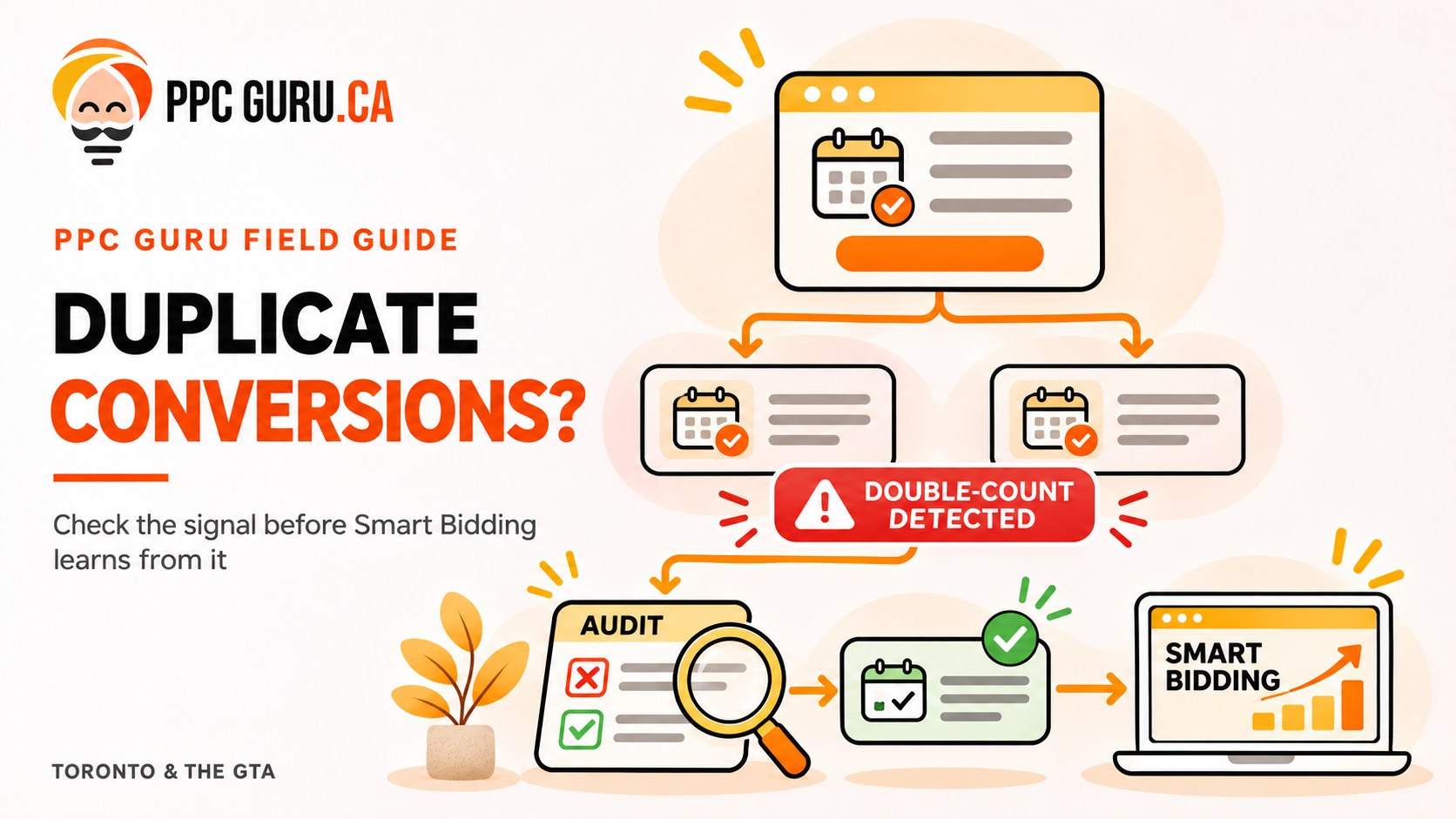
Smart Bidding can only optimize toward the actions your Google Ads account tells it matter. If one enquiry is recorded twice, or two conversion actions both describe the same lead, the numbers may make a campaign look healthier than the sales pipeline feels. A service business might see a low reported cost per lead while its team still books only a handful of consultations.
The answer is not to switch bidding strategies immediately. First, determine whether the apparent duplicate is a real measurement error, a reporting difference, or two legitimate stages of one customer journey. Then fix the signal the campaign actually uses. Here is a practical audit for Google Ads accounts that rely on forms, calls and CRM outcomes.
Start with one real business event#
Before opening Tag Manager, define the thing you want to count. For a GTA service business, that might be a completed quote request, a connected call that meets a duration threshold, or a qualified appointment. A button click is not automatically a submitted form. A form submission is not automatically a sales-qualified lead.
Write a one-line definition for each action: What happened? Where was it recorded? What makes it unique? Who can confirm it? For example, “One successfully received consultation request with a unique CRM lead ID” is much more useful than “contact conversion.”
Make a small event map: website form → thank-you state → Google Ads tag or GA4 event → CRM record → qualified or booked stage. This shows where a second signal could enter. It also prevents a different mistake: calling a form submission and a later booked appointment “duplicates” when they are genuinely different milestones. You may track both, but you must decide which one the campaign should bid toward.
Step 1: Compare actions, not dashboard totals#
Go to Goals → Conversions → Summary in Google Ads. Inventory every action that could represent a lead: website form, GA4-imported lead event, call from an ad, call from the website, click on a phone number, and offline qualified lead. Record its source, status, category, counting setting, and whether it is Primary or Secondary.
Then look at campaign settings to see which conversion goals the campaign uses. A Primary action can influence bidding when its goal is selected for that campaign; Secondary actions are generally observation-only, though Google notes an exception for actions included in a custom goal. The Conversions and All conversions columns therefore answer different questions. Segment by conversion action before assuming the total is wrong. See Google’s conversion goals and conversion reporting guidance.
Suppose a clinic has ten unique enquiry records in its CRM, while Google Ads shows nine conversions for “Website form” and nine for “GA4 lead.” If both actions refer to the same submissions and both are used by the campaign goal, that is a strong lead to investigate. It is not proof by itself: attribution, counting settings and reporting dates can also create differences. Match sample lead timestamps and test the implementation before changing settings.
Step 2: Reproduce one submission from start to finish#
Use a controlled test lead that your team can identify and remove or mark as a test. Open Google Tag Manager Preview and Tag Assistant, load the landing page, submit the form once, and inspect the event sequence. GTM Preview shows which tags fired and in what order, making it useful for investigating duplicate triggers. See Google’s Tag Manager preview and debug guide.
Record the result of each checkpoint:
| Test | Expected result | Duplicate clue |
|---|---|---|
| Open the page | No lead conversion | A conversion fires on page load. |
| Click submit with invalid fields | No completed-lead conversion | A click trigger fires before validation. |
| Submit one valid form | One completed-lead event | Two tags or two events fire for one success. |
| Refresh the thank-you page | No new lead | A page-view trigger counts another submission. |
| Return with the browser back button | No new lead | A history or page trigger fires again. |
Repeat the test on mobile if the form or call experience differs. Also check what reaches the CRM. One browser action that creates two CRM records is an operational duplication; one CRM record that produces two biddable conversions is a measurement problem. They need different fixes.
Step 3: Find the duplication pattern#
One common pattern is two routes to the same event. A website may have a Google Ads conversion tag installed directly and another in GTM. Or the same successful form submission may be sent to Google Ads natively and imported from a GA4 key event. Google says Analytics-based conversions may be set to Secondary to help avoid counting the same event twice for bidding; check the actual action settings rather than assuming that protection is active in your account. See Google’s Analytics conversion import guidance.
A second pattern is one tag firing more than once. A trigger may listen for both the submit button and the confirmed success event. A thank-you page may be reloadable. A single-page site may push the same data-layer event twice. The controlled test should reveal where the extra firing happens.
A third pattern is two lead stages treated as one bidding outcome. Counting the initial form and the later CRM-qualified lead is not inherently wrong. But if both are reported as equivalent Primary actions for the same campaign, the system may receive two signals from one customer journey. Choose the goal and values intentionally, based on what the business wants to acquire.
Calls need the same scrutiny. A mobile click on a phone number and a connected, qualified call are not identical. If both are labelled simply “phone lead,” compare their definitions before adding them together.
Step 4: Check “One,” “Every,” and unique IDs#
Each Google Ads conversion action has a Count setting. “One” counts one conversion per ad interaction for that action; “Every” can count multiple. For many lead-generation actions, “One” is worth considering, while purchases may need “Every.” But this setting is not a universal deduplication switch. It does not decide whether two separate conversion actions describe the same enquiry, and changes apply to future conversions rather than rewriting historical data. See Google’s conversion counting options.
For a purchase or another event with a genuine unique transaction identifier, Google recommends passing a dynamic transaction ID to help prevent the same completed transaction from being counted again when a confirmation page is reopened. Reusing one static ID for different transactions can cause undercounting. A transaction ID and the “One” setting solve different problems; neither replaces an audit of duplicate tags and goals. See Google’s transaction ID guidance.
For service leads, keep a unique lead or booking ID in your own CRM so you can reconcile stages. Whether that ID can be used for platform deduplication depends on the conversion method and implementation. Do not invent an ID by reusing a phone number, page URL or the same placeholder for every lead.
Step 5: Rule out a reporting difference#
Not every mismatch means double counting. Google Ads may report a conversion against the date of the ad click, while GA4 and a CRM may report the date the event happened. The Conversions column can also differ from All conversions, which includes additional actions. Imported Analytics data can arrive later, and attribution may produce fractional values. Compare the same date range, time zone, action and event definition before concluding that the account is inflated. See Google’s Analytics import discrepancy guidance.
A simple reconciliation sheet helps: unique CRM lead ID, event time, source, Google Ads action, GA4 event, qualification status and booking status. You do not need to export personal details into a shared audit document. A small, privacy-conscious sample of identifiable test records is enough to trace the flow.
Fix the source, then recheck the bidding goal#
Once the cause is confirmed, make the narrowest correction. Remove or repair the extra tag trigger. Stop a form-click event from posing as a successful submission. If native and GA4-imported actions represent the same milestone, choose an authoritative biddable action and keep the other for observation where useful. If a later qualified-lead event is the better target, verify its import and volume before switching the campaign goal.
After changing a tag, run the controlled tests again. After changing conversion action settings, check the campaign goal, action-level reporting and CRM reconciliation. Record the change date so the team does not compare a clean week with an inflated historical period as though both were measured the same way.
Google advises allowing Smart Bidding time to adapt after a significant change in the conversion behavior it optimizes toward. A careful, documented goal change is better than repeatedly toggling actions in response to a few days of data. See Google’s Smart Bidding learning guidance.
A five-question sign-off before you trust the signal#
- Does one completed customer action create one intended event in a controlled test?
- Can we explain every lead-related conversion action and its source?
- Do the campaign’s selected goals and Primary actions match the business outcome we want?
- Can a sample of platform conversions be reconciled to unique CRM leads or bookings?
- Have we recorded the fix, retested it, and marked the date when clean measurement began?
If the answer to any of these is no, a good-looking cost per conversion is not yet a dependable decision metric. Smart Bidding is useful when the signal reflects the customer actions your business actually values.
For a review of conversion tracking, lead quality and Google Ads goals together, explore PPC Guru’s Google Ads management approach or Toronto Google Ads agency page.